Help
Short answers about making, using and moving your Stubli. Can’t find yours? Ask us at the bottom.
Nothing found. Try another word, or ask us below.
Getting started
What do I need to start?
To make a Stubli you need two things: a WordPress website of your own, and the free Stubli plugin. Setting it all up takes about 15 minutes, and it’s easiest on a computer.
- A home for your site. This is the only part that costs money. We recommend WordPress.com’s Personal plan, and WordPress.com shows you the price in your currency before you pay. It’s what stubli.app runs on.
- The Stubli plugin. Free, now and later. No ads, no premium, nothing to unlock.
- Your phone. Once you’re set up, you’ll post and read in the Stubli app, which you add to your home screen.
Want to look around first? Try Stubli in your browser. No sign-up, and nothing is saved.
Which host should I choose?
We recommend WordPress.com, on the Personal plan. WordPress.com shows you the price in your currency before you pay. It’s the host we’ve tested, and stubli.app runs there. Any paid WordPress.com plan works; the Free plan doesn’t allow plugins. If you’d like to post videos as well as photos, choose Premium or above: Personal doesn’t take video files.
Changed your mind? WordPress.com refunds yearly plans within 14 days and monthly plans within 7.
Hosting it yourself? Stubli works on any WordPress where you can add your own plugins and other websites can reach yours. If you’d like to try another host or your own server, go ahead: install WordPress, add Stubli, then run the host check. It tells you if anything needs changing. Tell us how it went.
How do I add the Stubli plugin?
- Download Stubli. You get a file called stubli.zip. Don’t unzip it.
- In your site’s dashboard, go to Plugins → Add New Plugin → Upload Plugin.
- Choose stubli.zip, then Install Now.
- Tap Activate.
Stubli’s setup opens by itself straight away. Your site switches to the Stubli look, and nothing on it is deleted.
On WordPress.com, the dashboard is at your-address/wp-admin. Plugins need a paid plan.
What happens in the setup?
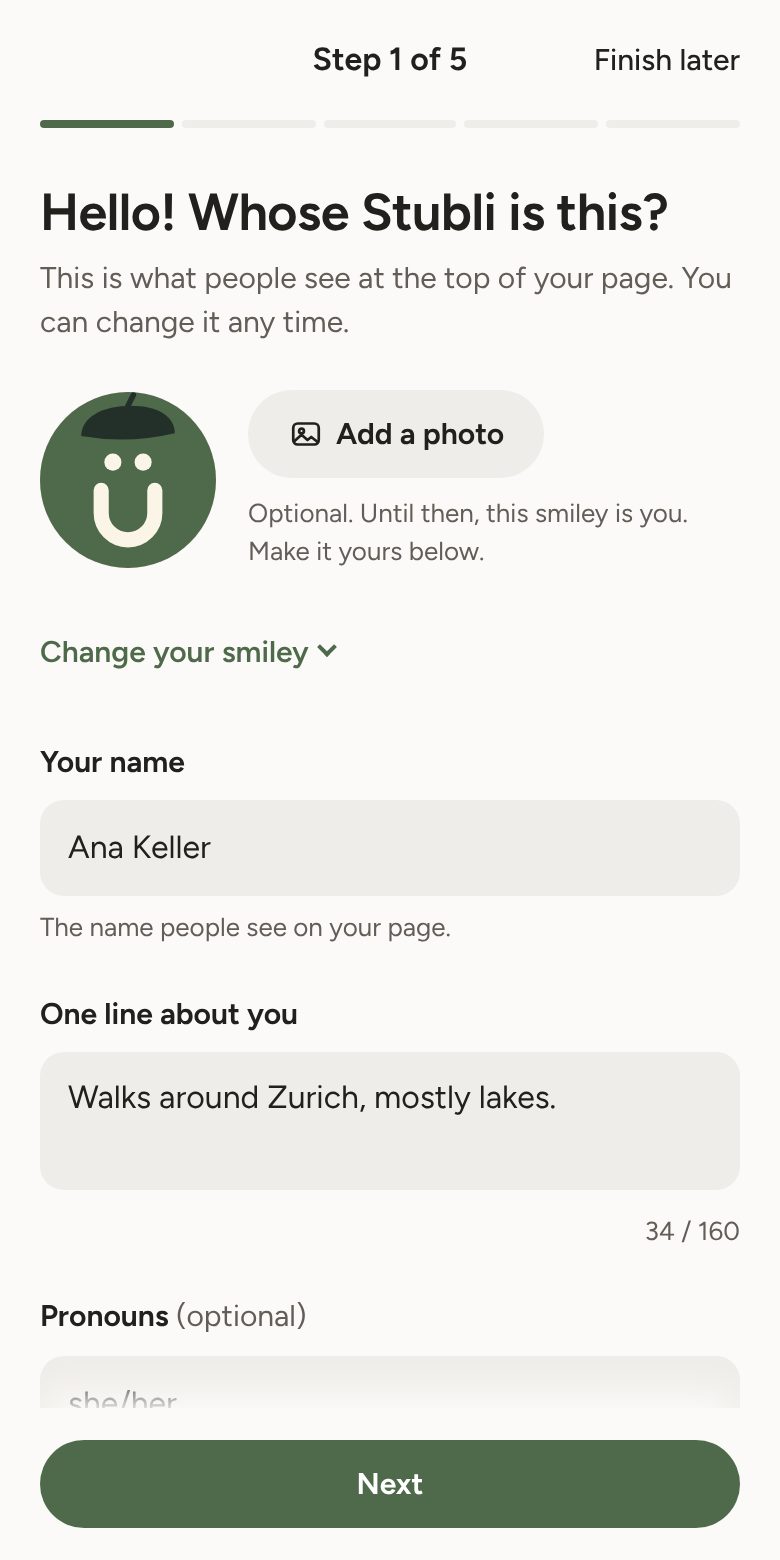
Right after you activate Stubli, its setup opens. Five short steps, about three minutes. You can stop with Finish later and carry on from the app.
- Hello. Your name, a photo or your smiley, one line about you, and your pronouns if you like.
- Interests. What you like to photograph. Each interest becomes a collection tab on your page, up to eight.
- Look. Your colour, a reading mode, and whether to show “Made with Stubli” on your page.
- Your people. Paste an invite link if a friend sent you one, and follow people your friends follow.
- Ready. When your daily summary arrives, the Stubli app on your home screen, and whether search engines may list your site.
After setup, a small Your first day card on Home suggests three things: post your first photo, invite one friend and put Stubli on your home screen. Each one ticks itself off when you do it, and you can hide the card any time.
You can change all of this later in the app: your name, photo and bio with Edit page on your You screen, your colour and reading mode under You → Settings and more → Colour and reading mode, and your collections by holding a tab on your You screen.
How do I put the app on my phone?
The Stubli app lives at your own address, followed by /app (for example amara.ch/app). Sign in once, then add it to your home screen so it opens like any other app.
- iPhone: open it in Safari, tap the Share button, then Add to Home Screen.
- Android: open the browser menu ⋮, then Add to Home screen or Install app.
Phone notifications for your daily summary only work on iPhone when you open Stubli from the home screen.
Posting
How do I post photos and videos?
- In the app, tap + at the bottom.
- Choose up to ten photos or videos. Videos can be up to a minute long.
- Pick a shape: Portrait (4:5), Square or Landscape (3:2). The app crops each photo to that shape for you, from the middle.
- Write a caption if you like, and choose a collection.
- If you like, tap Add descriptions (optional) and add a few words for each photo, for people who can’t see it.
- Choose who can see it, then Share.
Videos need a plan that takes video files. On WordPress.com that’s Premium or above. On Personal you can post photos, and the app tells you so before you start.
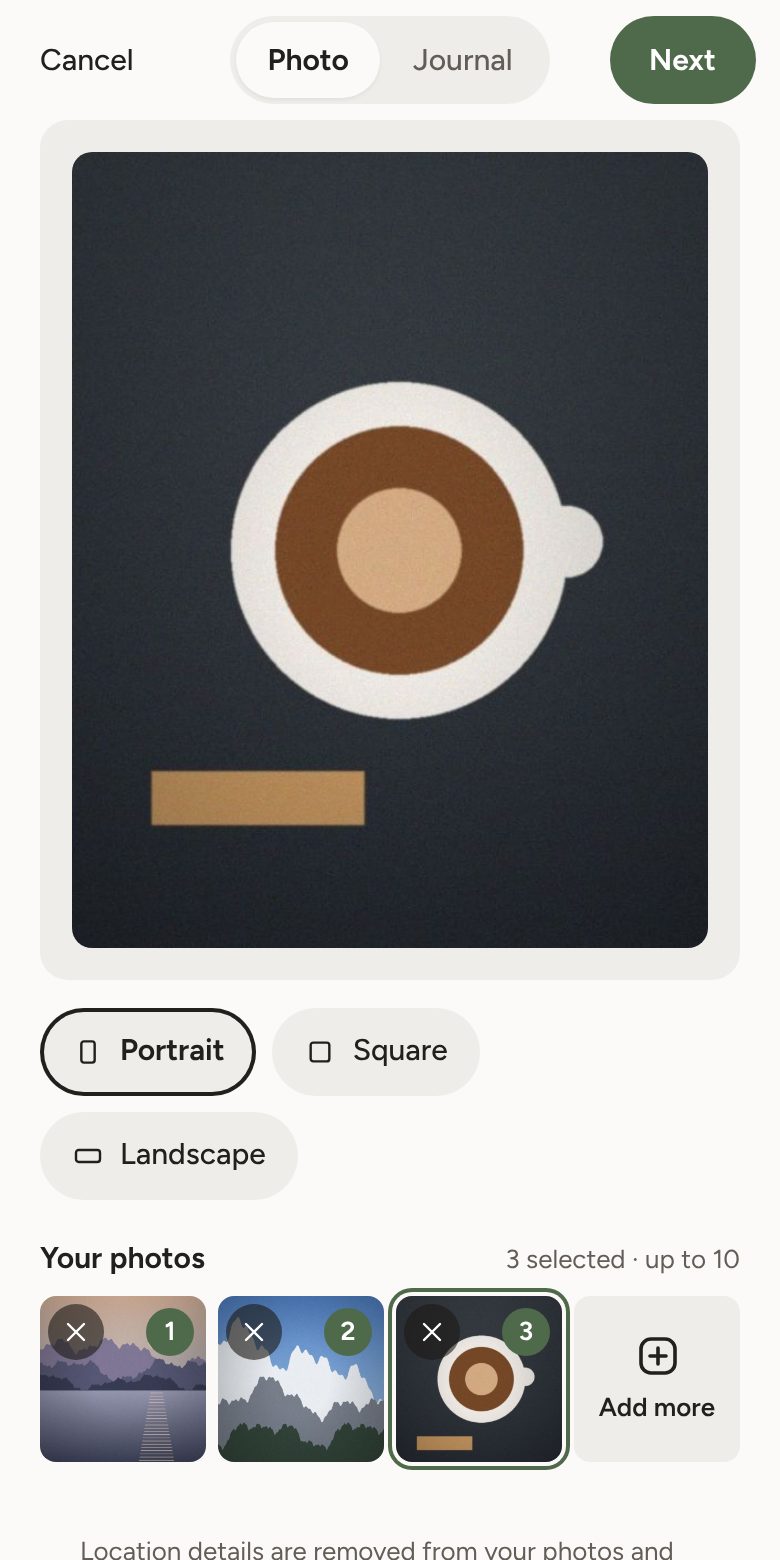
Your post is on your page straight away, and in your followers’ feeds within about 15 minutes. Stubli makes photos the right size and removes where they were taken, from photos and videos.
Links in captions work: paste a web address and it becomes a link.
Which photo sizes fit best?
- Portrait: 4:5, for example 1638 × 2048 pixels.
- Square: 1:1, for example 2048 × 2048 pixels.
- Landscape: 3:2, for example 2048 × 1365 pixels.
Photos of any size work. A photo already in the shape you pick fits exactly, with nothing cut off. Most phones take 4:3 photos, so Landscape trims only a thin strip from the top and bottom. At least about 1500 pixels across keeps photos sharp. Stubli saves them at up to 2048 pixels on the long side.
When someone opens a post, they see each photo as you cropped it, with nothing more cut off.
What are collections, captions and content notes?
Collections are the tabs on your page, like Coffee or Travel. Each post goes into one (or none). Choose one when you post, or tap + New to make another.
Captions can be as short or as long as you like, and links in them work.
Descriptions are a few words for each photo, read aloud to people who use screen readers. They’re optional: add them when you post, under Add descriptions, or later when you edit a post.
Content notes keep a photo softly blurred until someone taps it, with a short note like “Flashing lights”. Turn it on when you post or edit.
The shape of a collection follows its first photo. If the first post in a collection (your first pinned post, or else the newest) starts with a landscape photo, every tile in that tab shows as landscape (3:2). With a square photo, the tiles are square. Otherwise they’re portrait (4:5).
Arrange and rename your collections right on your You screen: hold any collection tab (or tap the arrows button at the end of the tabs). Drag a collection to change the order, tap the pencil to rename it or give it a short line, then tap Done. The short line shows quietly at the top of that collection on your page. The first tab is the one people see when they open your page.
Pin favourites to the top of a collection, up to three: hold a photo on your You screen and tap Pin to the top. Everything you haven’t pinned stays newest first, and your followers’ Home is never reordered.
How do I write in my journal?
Your journal is for longer things: a trip, a recipe, a thought. Entries show in the Journal tab on your page, in a book-like font.
- In the app, open You → Settings and more → Journal entry, or tap + and choose Journal.
- Write, up to 5,000 characters. What you see is how it looks on your page.
- Add photos with the photo button. Each one sits where you put it in your text, with its own caption and, if you like, a description. The video and link buttons add a YouTube or Vimeo video, or a web address.
- Choose Everyone, or Only me for a private entry, then tap Publish.
Drafts save themselves. A moment after you stop typing, your entry is saved as a draft on your own Stubli, so you can close the app and carry on later, even on another device. Only you can see drafts. Find them at the top of Your journal: open You and tap the book tab. Publishing dates the entry the day you publish it.
Formatting, like the Notes app: the buttons above the text make a heading, bold, italic, underline, strikethrough, a bulleted list, a numbered list, a checklist or a quote. You can also type them as you go: start a line with “- ” for a bulleted list, “1. ” for a numbered list, “[] ” for a checklist, “# ” for a heading or “> ” for a quote. Pasted text comes in plain.
Checklists work like in Notes: tap the circle to tick an item off, and tap it again to untick it. Visitors see which items are ticked, but only you can change them.
Edit or delete an entry any time. In the app, open You and tap the book tab (Your journal), or tap Edit under an entry’s date on your page (only you see that link). Change the words, the photos, or who can see it, then Save. Until you save, your changes are kept on that phone, so closing the app by accident loses nothing. The entry keeps its original date, and shows “Edited” with the time under its date. The earlier version is kept privately in WordPress. To delete it, tap Delete entry… and confirm. You can undo it straight after.
Can I edit or delete a post?
- In the app, open You and tap the photo.
- Change the caption, the collection, the content note, who can see it, or the photo descriptions. Then tap Save.
- To change the photos, tap Replace under a photo to swap it for another one in the same place, Remove to take it out, or Add photos for more, up to 10. A post always keeps at least one photo. New photos are cropped to the post’s shape; you can choose another under Shape for new photos. Use the arrows to change the order, and Make cover to put a photo first.
- To delete the post, tap Delete post… and confirm. You can undo it straight after.
Photos you take out are deleted from your site a few minutes after you save. Tap Undo straight after saving to bring them back. A post whose photos changed shows “Edited” next to its date.
Your followers’ feeds pick up the change the next time their Stubli checks for news, usually within 15 minutes.
Can I bring my photos from Instagram?
Stubli can bring in your Instagram posts with their original dates and captions. Carousels come along with up to 10 photos each.
- In Instagram, ask for your information download. Choose JSON as the format. Instagram emails you when it’s ready, which can take a while.
- In the Stubli app, open You → Settings and more → Bring your photos from Instagram.
- Choose the zip file Instagram sent you, then the posts you want.
Nothing is sent to Instagram. It’s safe to run twice: posts already on your page aren’t doubled. Videos longer than a minute stay behind.
Reading and following
What’s in my Home feed?
Home shows new posts from the people you follow, newest first. There’s no algorithm deciding what you see, and no ads.
- Tap an interest at the top to see only those posts.
- Swipe sideways through carousels, and tap a video to play it with sound.
- When you’ve seen everyone, the feed says “That’s everything for now”.
New posts arrive about every 15 minutes: your Stubli checks the sites you follow for anything new.
How do I follow someone?
There are three ways to follow someone:
- An invite link. To invite someone, open People (or tap Invite on your You screen) and tap Create an invite link. When a friend sends you one, open it and enter your Stubli’s address. You follow each other, usually straight away.
- Their address. In the app, open People at the bottom and type their address under Follow someone, like luca.ch.
- Discover. Further down People are sites your people follow publicly. Tap Follow.
To send your own invite, open You → Invite. Each link works once, for 30 days.
How do comments work?
Comments are the only reaction on Stubli. There are no likes.
When you comment, it’s saved on your own site first, then sent to theirs. On their post it shows straight away if they follow you, or if you’re followed by someone they follow. Otherwise it waits for their OK.
The same goes for comments on your posts. Comments from people you don’t know wait in What’s new → Waiting for your OK, where you choose Show it, Not now or Block this site.
To comment on someone’s page without the app, tap Comment from your own Stubli there. You’ll be asked for your Stubli address and taken to your own site to write it.
What’s in What’s new?
The bell at the bottom shows what happened since your last look:
- comments waiting for your OK,
- new posts from your people, grouped by interest,
- comments and guest book entries on your page from the last two weeks,
- notes visitors sent you from your cards.
A dot on the bell means something is waiting.
Can Stubli tell me what’s new once a day?
Once a day, at a time you choose, Stubli can tell you what’s new: on your phone, by email, or both. It only comes when something is new.
- In the app, open You → Settings and more → Daily summary.
- Choose the time.
- Tap Send it to this phone, and allow notifications when your phone asks.
- Tick Also by email if you like.
On iPhone, open Stubli from your home screen first. Notifications don’t work in a Safari tab.
Friends and privacy
How do friends only posts work?
Some posts are just for the people you’d invite in.
- First, choose your friends: in the app, open People at the bottom and tick Friend next to each one under Your people.
- When you post, choose Friends only under Who can see it.
A friends only post is handed to each friend you chose, in their own Stubli. It never appears on your public page, in your feed for others, or in search engines.
Your friends need a Stubli of their own, and need to follow you, to see friends only posts.
Who can comment, and how do I block someone?
In Settings → Stubli → Who can comment and sign, choose:
- People you follow and people they follow show straight away; everyone else waits for your OK. This is the default.
- Only people you follow show straight away.
Comments with links in them wait for your OK, unless they come from someone you follow.
Blocking is quiet. Choose Block this site on a waiting comment, and nothing more from that site will show. They aren’t told.
Can I take a break?
Need some quiet? In Settings → Stubli, turn on Take a break. Comments and the guest book pause, and visitors see that you’re taking a break. Nothing is deleted, and your page stays as it is.
Turn it off whenever you’re ready.
What’s public, and what isn’t?
Your Stubli is a website, so your page is public, like any website: your photos, journal entries for Everyone, your guest book and your links.
These are never public:
- friends only posts,
- journal entries marked Only me,
- notes visitors send you from your cards,
- comments waiting for your OK.
Their photos are still files on the web: hard to find, but not locked away.
Search engines stay away if you choose that in setup (it’s suggested), or untick Let Google and other search engines find this site in Settings → Stubli. AI crawlers are asked to stay away by default; respectable ones honour that.
Sensible, not secret: don’t post anything you wouldn’t put on your own front door.
Your page
How do I change my name, photo, cover or bio?
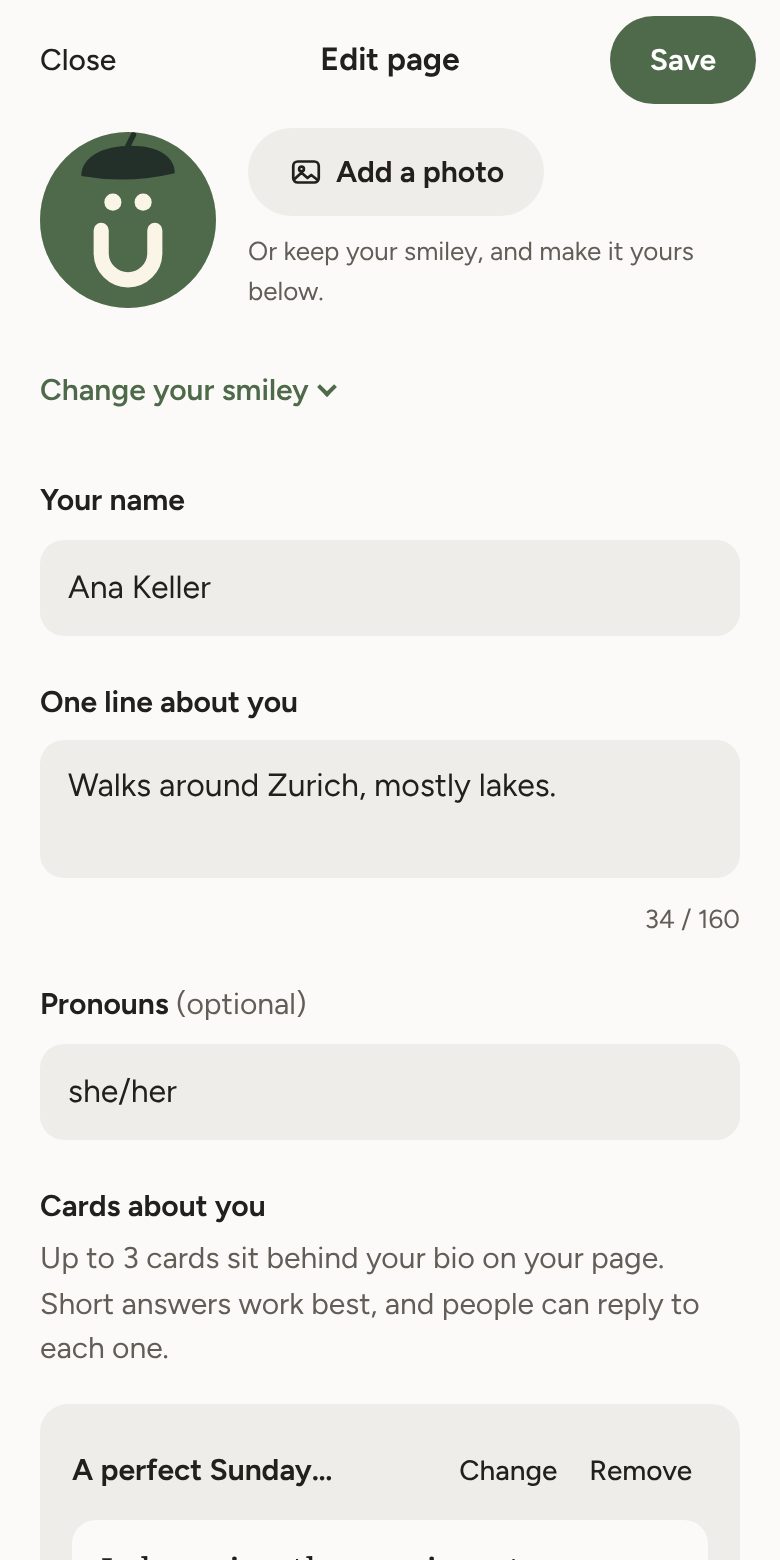
Open the app, tap You, then Edit page. Tap Save when you’re done.
- Cover photo (optional) is a wide picture across the top of your page. A landscape photo works best, at least 1500 × 500 pixels, as JPEG, PNG or WebP. You drag it, zoom or turn it to choose which part shows, and location details are removed. Tap Use this and it’s saved straight away; tap Remove to go back to no cover.
- Your name is what people see at the top of your page.
- Your photo can be a face, a place, anything. No photo? You get a smiley: tap Change your smiley to pick its colour and something extra, like a hat or glasses.
- One line about you sits under your name.
- Pronouns are optional.
What are cards, and notes from visitors?
Cards sit behind your bio: a question and your answer, like “A perfect Sunday…”. You can have up to three.
- Open You → Edit page → Add a card.
- Choose a prompt, or write your own, and answer it.
Visitors can reply to a card. With a Stubli of their own, they write from their app. Without one, they can leave a private note with their name and how to reach them. Notes arrive in What’s new and only you see them. Notes from visitors without a Stubli are deleted after 90 days.
How do I change my colour or reading mode?
Choose a colour for your buttons and tabs: Moss, Sea, Plum, Rust or Gold. Moss is the Stubli green.
Choose how your page reads by default:
- Automatic follows the visitor’s phone: light by day, dark at night.
- Light, Paper (warm, with a book font) or Dark.
Visitors can still switch with the Aa button. Change both any time in the app: You → Settings and more → Colour and reading mode.
Little surprises on special days. On a few days a year, the Stubli logo at the top of your page and in the app joins in: confetti at New Year, heart eyes on Valentine’s Day, a pumpkin at Halloween, fairy lights at Christmas, a Swiss flag on 1 August (on Swiss Stublis), and a cupcake on your Stubli’s birthday, a year after your first post. It’s on to start with. To switch it off, open the same Colour and reading mode screen.
What are the guest book and links?
The guest book is a page where visitors sign with a few kind words, from their own Stubli. To change your welcome line, pin a favourite to the top or remove an entry, open You in the app and tap the guest book tab. You can also tap Pin under an entry on your page while signed in (only you see that button). A removed entry can be brought back straight after.
Links lists the links you choose, plus the sites you follow publicly. To add, change, reorder or remove your links, open You in the app and tap the links tab.
Both are tabs on your page, with their names in green.
Moving and leaving
How do I download everything?
- In the app, open You → Settings and more → Yours to keep.
- Tap Download everything.
You get one zip with your photos and videos as they are on your site, your captions, journal, comments, guest book and the people you follow, as pages you can open without the internet, plus a data file. Keep the screen open until it’s ready. It can take a few minutes.
How do I move to another site?
Moving to a new WordPress, for example your own server? Stubli copies your photos, journal, guest book, people and settings over, and your followers switch to your new address by themselves.
- Set up Stubli on the new site.
- On your old Stubli, open You → Settings and more → Move to another site → Make a move link.
- Paste the link into the new Stubli, in its setup or under You → Settings and more → Move to another site, and tap Start.
- Afterwards, add your cover photo again and tick your friends again under People → Your people.
Keep the move link private: it lets the new site copy your Stubli, including entries only you can see.
When something doesn’t work
Is my host Stubli-ready?
In your dashboard, open Settings → Stubli → Is this host Stubli-ready? It takes a few seconds and tells you if anything needs fixing.
Among other things, it checks that:
- other websites can reach yours, so follows and comments arrive,
- your site can reach other websites, so you can follow people,
- background jobs run, so your feed updates by itself,
- uploads are big enough for photos and short videos.
Tap Check and send the result to the Stubli team to help us keep the list of Stubli-ready hosts up to date.
Something isn’t working. What can I try?
My feed doesn’t update. Your Stubli checks for new posts in the background. Some hosts switch those background jobs off; run the host check to see.
Comments from friends don’t arrive. Comments travel with the free Webmention plugin. Open Settings → Stubli: if it says a piece is missing, tap Add Webmention.
A video won’t upload. Videos can be up to a minute. If your host limits file sizes, Stubli tells you the limit; try a shorter clip.
I can’t install plugins. Your plan or host doesn’t allow it. On WordPress.com, plugins need a paid plan.
The app asks me to sign in again. Sessions end after a while. Sign in once more; your journal draft is kept.
How do I send feedback?
Found something that doesn’t work, or have an idea? In the app, open You → Settings and more → Tell us what you think, or use the feedback page.
A real person reads every note. Stubli is in beta, and what you tell us shapes what comes next.